Why not import Amazon's CSV directly?
You can: File → Import in Google Sheets accepts the Order History.csv from the ZIP. But you get every column Amazon includes — shipping and billing addresses, payment method, gift messages — and order dates like 2024-03-05T14:22:11Z that may not be recognised as dates. Digital orders are in a second file with different columns, and amounts in different currencies share one column. Tidying that up in the sheet takes longer than doing it before the import.
Option 1: Copy and paste
- Request your data from Amazon (Your Orders) and download the ZIP — step-by-step guide.
- Drop the ZIP on the viewer below. There is no need to unzip it.
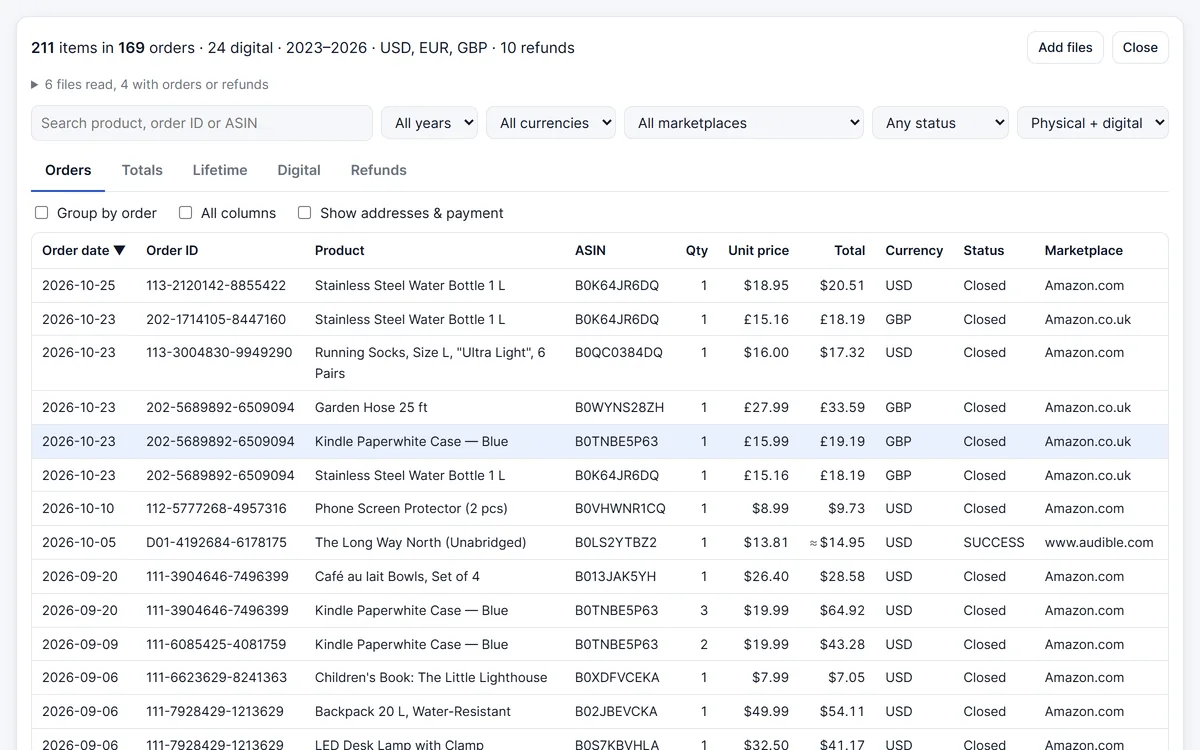
- Optional: pick a year, marketplace or status in the filters, or tick Group by order for one row per order. The copy contains exactly the rows and columns you see — every page of the table, not just the first 100 rows.
- Click Copy, open a new spreadsheet (typing
sheets.newin the address bar works), click cell A1 and paste with Ctrl+V (⌘V on a Mac).
The copied text is tab-separated with a header row, so Sheets splits it into columns. Dates are written as 2024-03-05 and amounts with a decimal point, like 29.86. If your spreadsheet locale uses a decimal comma, Sheets may treat the amounts as text: switch File → Settings → Locale to one with a decimal point before pasting, or use the .xlsx file instead.
Option 2: Import a CSV or .xlsx
- In the viewer, click Download Excel (.xlsx) or Download CSV.
- In Google Sheets, choose File → Import, open the Upload tab and select the file.
- Choose where the data goes — Create new spreadsheet, Insert new sheets or Append rows to current sheet — leave the separator on Detect automatically for a CSV, and import.
| Option | Best when |
|---|---|
| Copy | A quick look or a one-off analysis |
| .xlsx | Pivot tables, a decimal-comma locale, keeping the totals sheet: dates are real dates, amounts are numbers, and a second sheet holds totals per currency and year |
| CSV | Adding a new year to an existing sheet (Append rows to current sheet) or feeding another tool; UTF-8, so accents and currency symbols survive |
Pivot table: spending by year and month
- Click a cell in the data and choose Insert → Pivot table, then create it on a new sheet.
- Under Rows, add Order date. Right-click a date in the pivot table, choose Create pivot date group and pick Year — or Year-Month to see months without mixing years.
- Under Columns, add Currency, so dollars and euros are never added together.
- Under Values, add Total summarised by SUM. Add Order ID summarised by COUNTUNIQUE to count orders rather than items.
- Under Filters, add Status and untick cancelled statuses, so cancelled orders don't inflate the totals.
Date grouping needs real dates: it works on the .xlsx import and usually on pasted dates. The viewer's Totals tab shows the same figures per year, month and currency (spending per year), so you can check your pivot against it.
More pivot ideas
- By marketplace: Rows = Marketplace — Amazon.com against Amazon.co.uk, or Whole Foods and Amazon Fresh deliveries.
- Physical or digital: Rows = Type. Kindle and other digital orders are included when the ZIP has the digital orders file (Kindle purchases).
- Top products: Rows = Product, Values = SUM of Total, sorted from largest to smallest.
- By category: the current order file has no category column; the old pre-2023 reports did, and the viewer then shows a Category column. Otherwise add your own column in the sheet — type a category for the bigger items, or use a formula such as
=IF(REGEXMATCH(C2,"(?i)cable|charger|battery"),"Electronics","Other")— and pivot on it. - Refunds: open the Refunds tab, copy or export it, and put it on its own sheet (refund history).
Keep addresses and payment data out of the sheet
A Google Sheets file lives in your Google Drive and is easy to share by accident. The viewer keeps personal data out by default:
- Address, payment, gift-contact and e-mail columns are hidden and are neither copied nor exported until you tick Show addresses & payment — even with All columns on.
- The ZIP is read by your browser and never uploaded; only what you copy or download leaves the page, and it goes where you paste or save it.
- Cells that start with
=,+,-or@get a leading apostrophe, so a product name can't run as a formula.
Open your ZIP and copy it to Sheets
Drop your Your Orders.zip or order history CSV here
The ZIP (or CSV) from Amazon's Request your data → Your Orders. It is read by your browser and never uploaded. How to get it
Files
Spent = Amazon's per-item total (Total Owed / Total Amount): price × quantity + tax + shipping − discounts. ≈ marks rows computed because the total was empty. Details
Lifetime = physical + digital orders per currency, cancelled orders left out. Refunds are subtracted only in “Spent − refunds”, in the year they were issued. What is included
Digital orders come from the digital orders file of the export. Type is shown only when the file states it. How types are found
Refunds are matched to orders by Order ID; repeated rows count once. How refunds are matched
Frequently asked questions
Can Amazon send my orders to Google Sheets directly?
Not for personal accounts. You request your data from Amazon, download the ZIP and bring it into Sheets yourself. This site has no access to your Amazon or Google account; it only prepares the table in your browser.
How do I add new orders later?
Request a fresh Your Orders export (it always covers your whole history), pick the new year in the viewer's filters and copy or download just those rows. Import a CSV with Append rows to current sheet to add them under the existing ones.
Why are my amounts left-aligned and not adding up?
Sheets read them as text, usually because the spreadsheet locale expects a decimal comma. Change File → Settings → Locale and paste again, or import the .xlsx, where amounts are stored as numbers.
Can my Kindle orders go into the same sheet?
Yes. When the ZIP contains the digital orders file, those rows are in the table, marked Digital in the Type column, so you can filter or pivot on them.